VPN-MULTI Android Installation & First-Time Connection Guide
(SatzoneUK VPN Service – Multi-Server Edition)
1. Install the Application
- Download the official VPN-MULTI APK from www.satzone.uk/vpn or direct link HERE.
- Enable unknown sources if prompted.
- Install the APK.
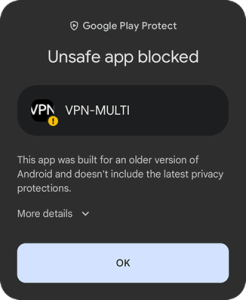
** NOTE ** Android 15/16 users (mainly mobile/tablet users) may be further prompted with extra security ‘pop-up’ warnings. This is perfectly normal and safe to continue with the installation but this may just require the following additional steps:
On screen in a similar looking screenshot as below you will see it shows “More details” with a down arrow, click/tap on the text/arrow.
You should now see on screen a similar looking screenshot as below. Click/tap on the “Install anyway” text and the installation should proceed and complete
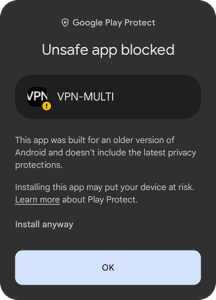
NOTE Screenshots show VPN-MULTI app. name but this is the same for both VPN-BASIC and VPN-MULTI apps.
2. Initial Connection Request
“Connection request – VPN-MULTI wants to set up a VPN connection that allows it to monitor network traffic. Only accept if you trust the source.”
- Tap OK.
3. Notification Permission
“Allow VPN-MULTI to send you notifications?”
- Tap Allow.
4. Enter Credentials & Connect
- Server: Choose your desired server from the list.
- Username: Enter your provided username.
- Password: Enter your password.
- Tap CONNECT.
Important: You must enter credentials and successfully connect once per server. After the first successful connection to a server, VPN-MULTI saves them – future connections to that server require just a tap.
5. Final Confirmation (If Prompted)
- Tap OK.
6. Successful Connection
- Status: CONNECTED (green).
- VPN icon in status bar.
Disconnecting / Switching Servers
Tap DISCONNECT. If you wish to connect to a different server afterwards, select it from the list – your saved credentials will be used automatically.
